

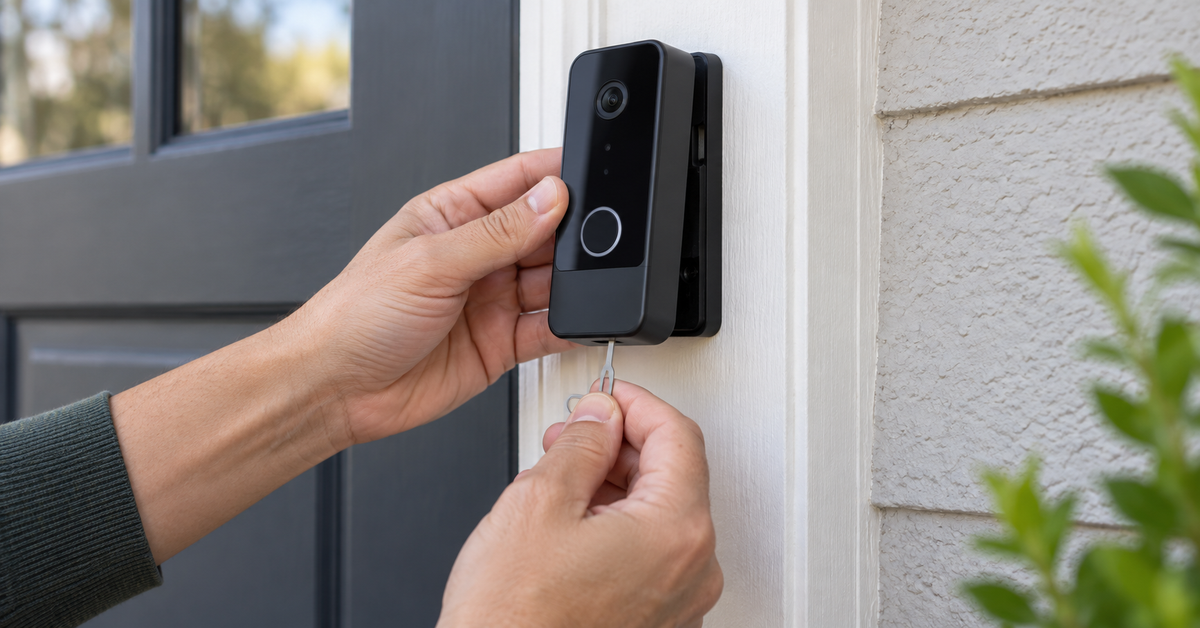
To remove a Blink doorbell from its mounting plate, turn off power at the circuit breaker if the doorbell is connected to chime wiring. Insert the opening key supplied with the doorbell straight into the release slot on the bottom, press firmly until the catch clicks, and pull the doorbell away from the plate. Some original Blink Video Doorbell mounts require you to slide the unit upward while pivoting it away. Do not force or pry the housing.
That quick answer covers taking the device off its mount. If you want to remove the back plate, disconnect doorbell wires, delete the doorbell from the Blink app, or prepare it for a new owner, keep reading—the steps and consequences are different.
| If you want to… | What to do |
|---|---|
| Access the batteries or reset button | Release the doorbell from its mounting plate with the opening key. |
| Permanently uninstall it | Release the device, safely disconnect any chime wiring, and remove the back plate. |
| Remove it from your Blink account | Use Device Settings in the Blink app; taking it off the wall does not delete it. |
| Fix an offline doorbell | Use Blink’s connection troubleshooting before deleting and re-adding the device. |
Before You Remove a Blink Doorbell
First decide what “remove” means for your situation:
- Temporary access: Take the doorbell off the plate to replace batteries, read its serial number, or press the reset button.
- Physical removal: Remove the doorbell, disconnect any chime wires, and unscrew the back plate from the wall or doorframe.
- App removal: Delete the device from your Blink system so it no longer appears in your account.
- Transfer to another owner: Physically remove it and delete it from your account before selling or gifting it.
You will normally need the Blink opening key that came attached to the installation template. If it is missing, Blink instructs owners to contact Blink Support for a replacement. Advice online sometimes suggests a screwdriver, paper clip, or SIM tool, but an improvised metal tool can damage the catch and is especially inappropriate near energized mounting contacts.
Electrical safety: Blink warns that live current may be present at the two metal contacts when chime wiring is connected. Switch off the correct doorbell-chime circuit at the breaker before removing a wired unit, opening its rear cover, or touching its mounting hardware. Verify that the circuit is de-energized using an appropriate method. If you cannot identify the circuit, find unexpected wiring, or are not comfortable doing the work, stop and use a qualified electrician.
How to Remove a Blink Doorbell From the Mount
- Check whether it is wired. If the doorbell uses existing chime wiring, turn off the corresponding circuit breaker before touching it.
- Find the release slot. Look along the bottom edge of the doorbell where it meets the mounting plate.
- Insert the opening key straight. Push the key into the slot rather than levering it sideways.
- Press until the catch releases. A click or change in resistance indicates that the latch has disengaged.
- Separate the doorbell from the plate. Pull it away from the mounting plate. With some original two-hole back plates, slide the doorbell upward while pivoting it away, following Blink’s model-specific illustration.
- Support the device. A wired doorbell may still be connected by two conductors. Do not let it hang from the wires.
Blink’s current Video Doorbell mounting instructions identify the opening key as the intended removal tool. The newer Video Doorbell (2nd Gen) and Battery Doorbell 2K+ instructions likewise say to insert the release key into the bottom slot, press until it clicks, and pull the device from its plate.
What to Do If the Blink Doorbell Will Not Come Off
Do not solve resistance by pulling harder. Check these points instead:
- Confirm that the key is in the release slot—not a microphone, speaker, or other opening.
- Push the key straight in far enough to release the catch; avoid twisting it.
- Maintain gentle support on the device while releasing the latch.
- Check whether your original-model plate requires an upward slide and pivot rather than a straight pull.
- Look for a third-party anti-theft cover or no-drill mount that must be opened according to its own instructions first.
- If paint, sealant, or debris has bridged the edge, do not insert a blade where it could reach wiring or damage the weather-resistant housing.
If the catch still will not release, contact Blink Support. Forcing the doorbell can break the latch, deform the mounting plate, damage the wall surface, or strain connected wires.
How to Disconnect and Remove a Hardwired Blink Doorbell
Removing a hardwired installation involves more than releasing the device. These are general safety-oriented steps; the exact wire arrangement and local electrical requirements may differ.
- Turn off the chime circuit at the breaker. Do this before removing the doorbell from the plate.
- Confirm the circuit is off. Do not rely only on the doorbell becoming unresponsive.
- Release the doorbell with the opening key. Support it so its weight is not carried by the wires.
- Document the connection. Take a clear photo before loosening anything if you expect to reinstall the same device.
- Loosen the terminal screws and detach the conductors. Handle only a verified de-energized circuit.
- Secure unused wires correctly. Do not leave bare conductors exposed or push them into the wall without appropriate insulation and enclosure. Follow local electrical requirements or use an electrician.
- Unscrew the back plate. Hold the plate while removing its mounting screws, then remove any wedge or corner mount if desired.
If you are replacing the doorbell, keep the breaker off until the new installation is complete. A renter should obtain the property owner’s approval before removing fixed mounting hardware or altering doorbell wiring.
How to Open the Back Cover After Removal
Turn the removed doorbell over and locate the gray latch at the bottom of the rear cover. Lift the latch with a fingernail and remove the weather-resistant cover without bending its tabs. If you opened the unit to change batteries, use the exact battery type specified for your model and replace the complete set together.
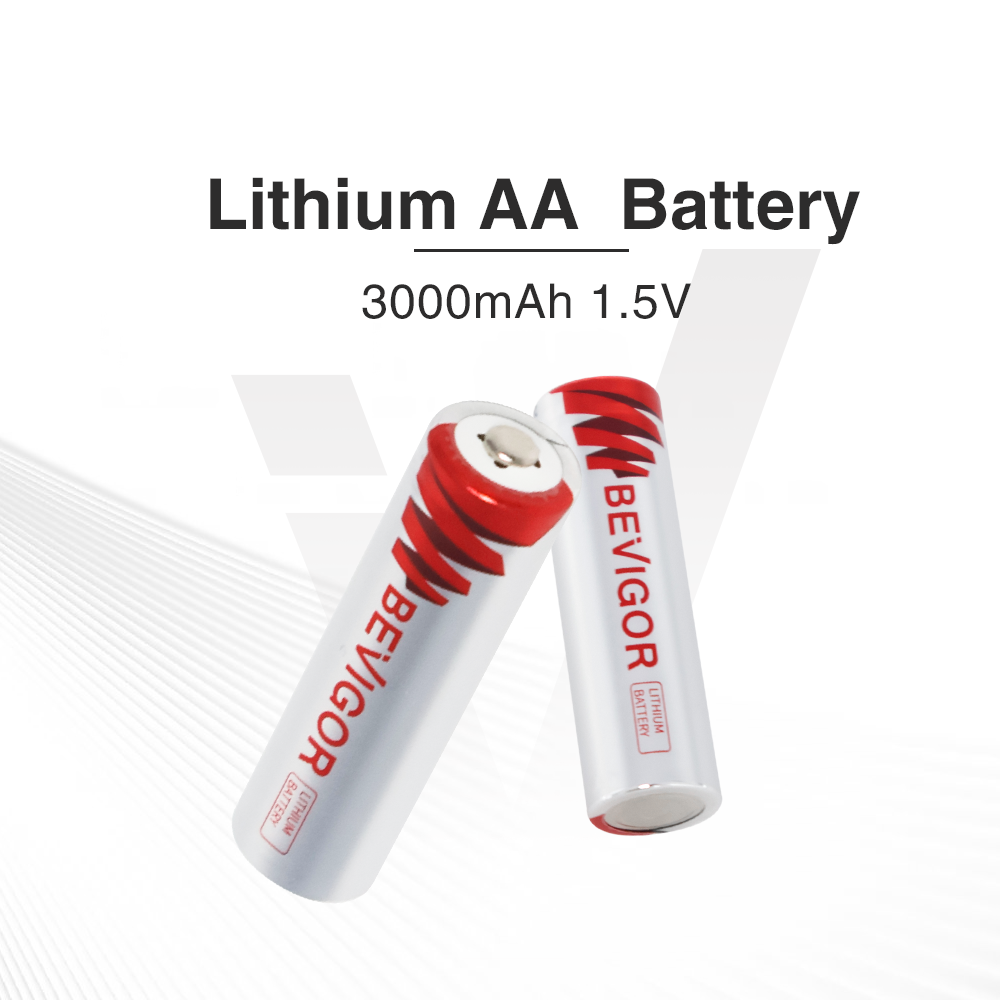
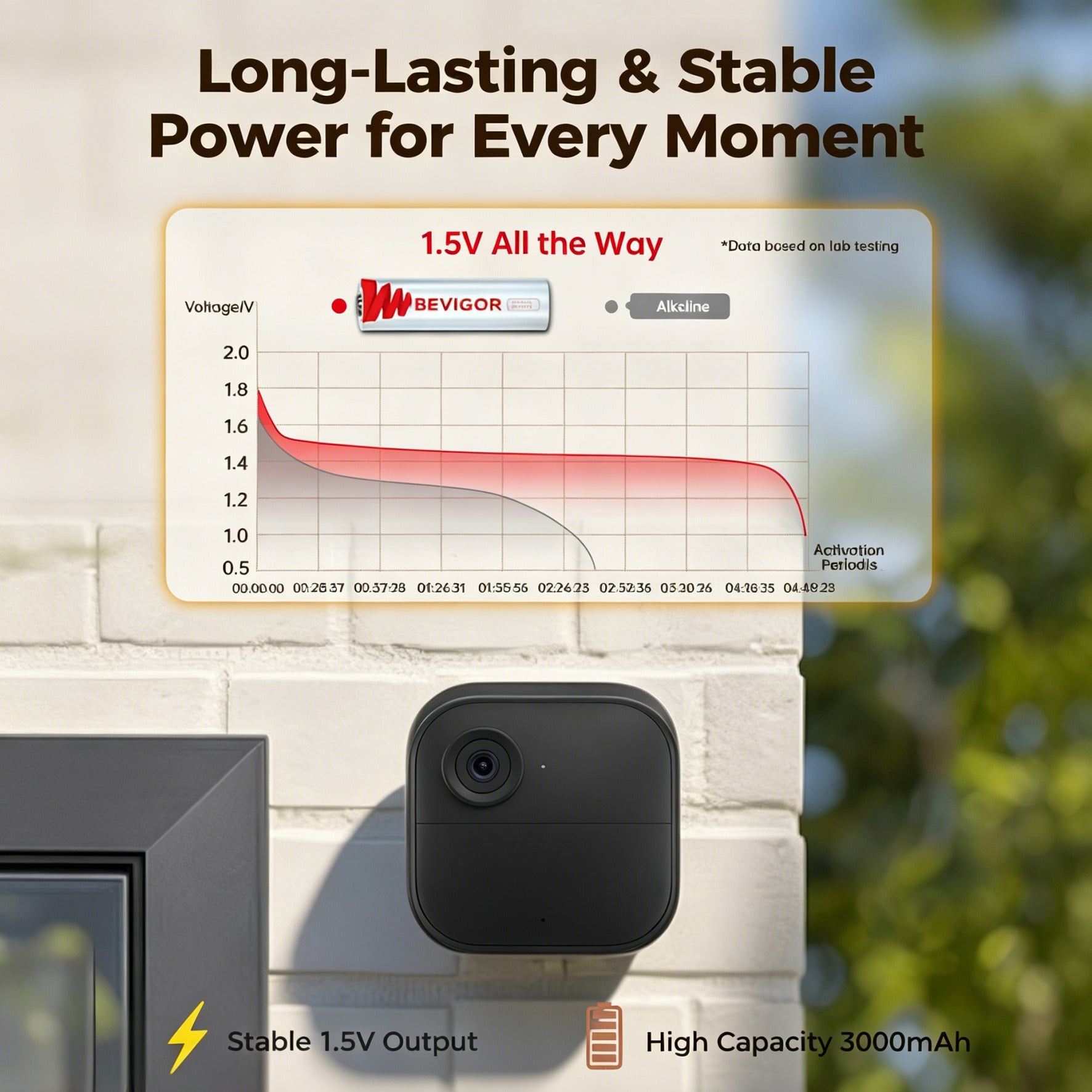
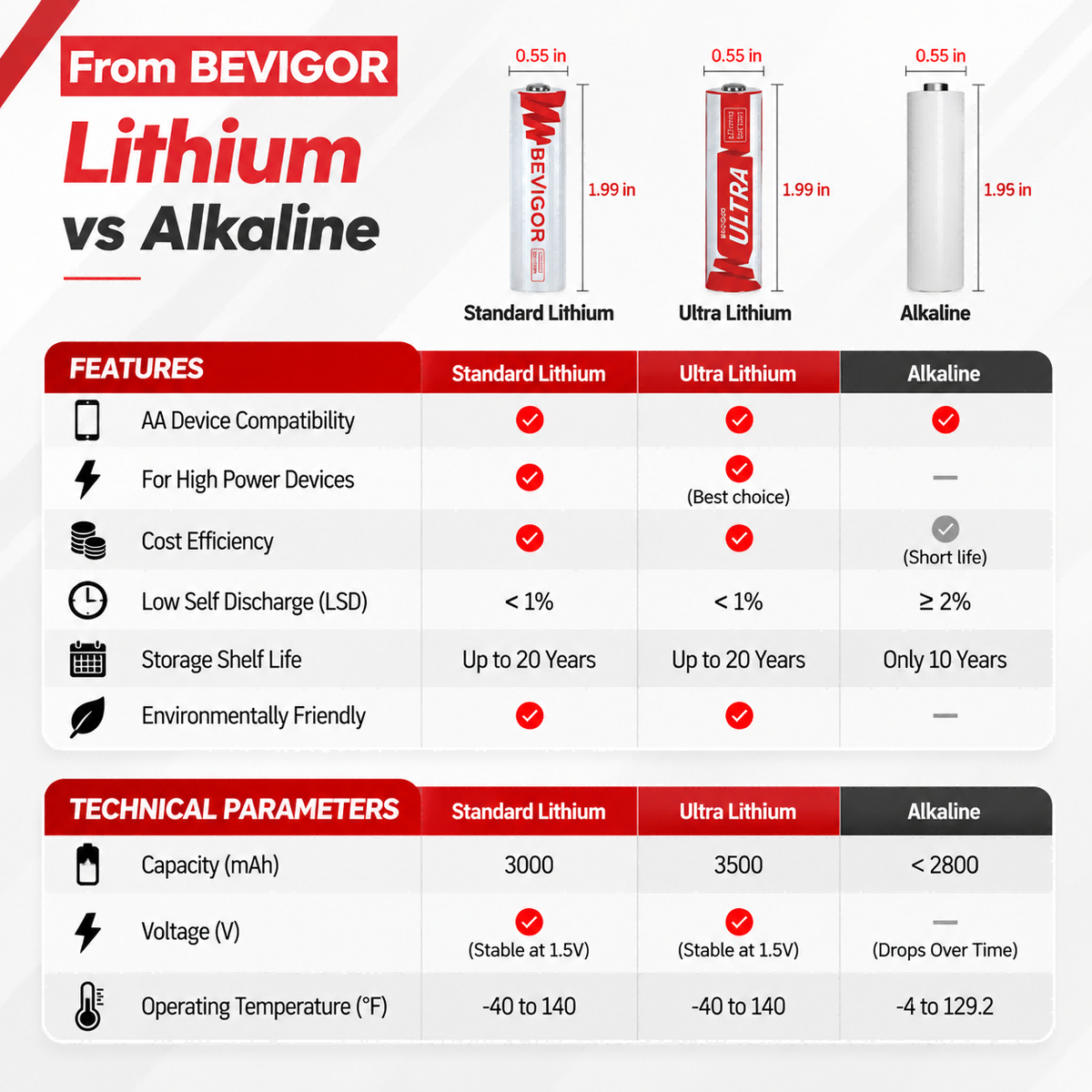
For model-specific cell counts and battery requirements, see BEVIGOR’s Blink Video Doorbell battery guide. Do not assume all Blink doorbells use the same number of batteries; the separate Wired Doorbell 2K+ has no user-replaceable battery set. Never substitute a battery based on size alone.
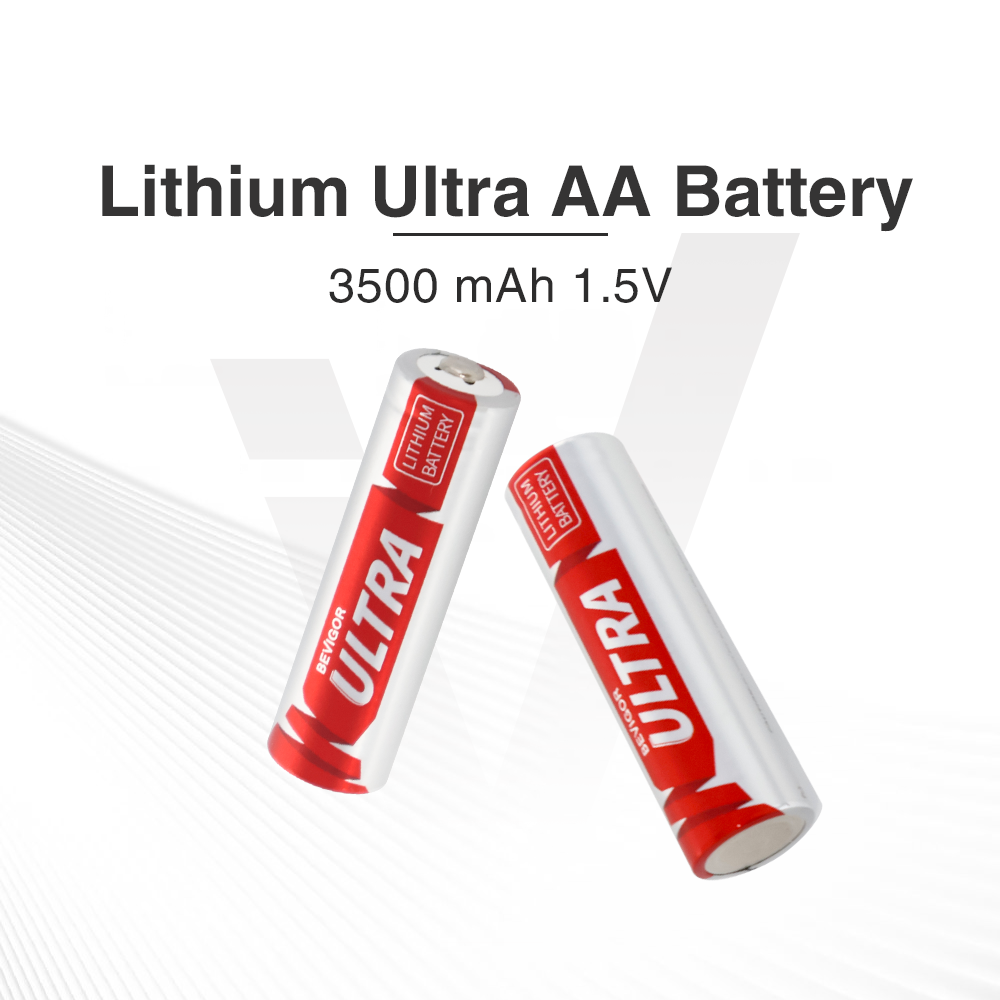
If removal is part of a planned battery change, you can also browse BEVIGOR’s AA lithium battery collection to compare available labels and pack sizes. A collection listing does not establish compatibility or Blink approval; follow Blink’s current battery specification for your exact doorbell model.
How to Remove a Blink Doorbell From the App
Taking the doorbell off the wall does not delete it from your Blink account. If you want to remove the device from your system:
Removing it because it is offline?
Physical removal gives you access to the batteries and reset button, but it does not automatically fix a Wi-Fi or account problem. Before deleting the doorbell, Blink recommends removing its batteries for five seconds and reinstalling them, checking Wi-Fi and Sync Module signal strength when applicable, and completing the other connection checks in its Video Doorbell offline guide. Model-specific reset and battery instructions differ, so follow the section for the exact doorbell shown in your Blink app.
Delete and re-add the doorbell only after the basic connection checks have not resolved the problem. If you are removing it because you are selling, gifting, or permanently retiring it, proceed directly with account deletion.
- Open the Blink app and find the doorbell on the Home screen.
- Tap the More button (…) on the device thumbnail.
- Select Device Settings.
- Open General Settings.
- Tap Delete Device and confirm.
Blink’s device-deletion instructions state that a confirmation email containing the device name and serial number is sent after deletion. An offline device can also be deleted from its offline-notification screen. App labels can change, so update the app and consult current Blink Support if the menu differs.
Deleting a device is not the same as deleting your entire Blink account or system. Do not delete the account or Sync Module merely because you are moving one doorbell.
Removing a Blink Doorbell for Sale, a Gift, or a Move
A new owner cannot register a Blink device that is still attached to the previous owner’s account. Before handing it over:
- Save any clips or information you are entitled to keep before making account changes.
- Delete the doorbell from your Blink account using Device Settings.
- Wait for the deletion confirmation.
- Turn off the breaker if wiring is present, then physically remove and disconnect the doorbell safely.
- Include the opening key, mounting plate, screws, and any wedge or corner mount you are transferring.
Blink’s resale and gifting guidance confirms that devices must be removed from the original account before another person can add them. Deleting your whole Blink account is optional and is unnecessary when transferring only one device.
How to Reinstall the Doorbell
If removal was temporary, inspect the plate and rear cover before remounting. Make sure the battery cover is fully latched, no wire is pinched, and the mounting plate is secure. Align the top of the doorbell with the top of the plate, engage the hook or guide, then press the bottom firmly until it clicks. Restore breaker power only after the wired device is seated and the work is complete.
Test the button, Live View, motion notifications, and intended in-home chime behavior. A successful physical click does not by itself confirm that wiring, Wi-Fi, or app settings are correct.
Frequently Asked Questions
Can I remove a Blink doorbell without the key?
Blink directs owners who have lost the opening key to contact Customer Service for a replacement. Avoid substituting a metal object, particularly when chime wiring may energize the mounting contacts.
Do I need to turn off power if my Blink doorbell uses batteries?
If the doorbell is also connected to existing chime wiring, yes—turn off the chime circuit at the breaker before removal. For a completely unwired, battery-only installation, there is no household chime circuit connected to the plate.
Does taking the Blink doorbell off the wall delete it from the app?
No. Physical removal and account deletion are separate. Use More (…) > Device Settings > General Settings > Delete Device if you want to remove it from the Blink system.
Should I delete the device before changing its batteries?
No. Routine battery replacement does not require deleting and re-adding the doorbell. Remove it from the mounting plate, replace the complete battery set according to the exact model’s instructions, remount it, and test it.
Should I delete and re-add an offline Blink doorbell?
Not as the first step. Blink recommends reseating the batteries, checking the network connection and relevant signal strength, and completing its other offline troubleshooting first. If the doorbell remains offline, follow Blink’s current instructions for deleting and setting it up again.
How do I remove the Blink doorbell back plate?
First remove the doorbell itself. If wiring is connected, switch off and verify the circuit before disconnecting conductors. Then support the plate while removing its mounting screws. Secure unused wiring correctly; contact an electrician if you are unsure.
Will removing the device erase my saved clips?
Clip availability depends on your storage method, subscription, system configuration, and the account action taken. Review and save any clips you are entitled to retain before deleting devices, systems, or accounts, and consult current Blink Support for your setup.
BEVIGOR is not affiliated with, endorsed by, or certified by Blink or Amazon. Blink product names are used only to identify the devices discussed.






Share:
AA Lithium Batteries in Bulk: When a 96-Pack Makes Sense