

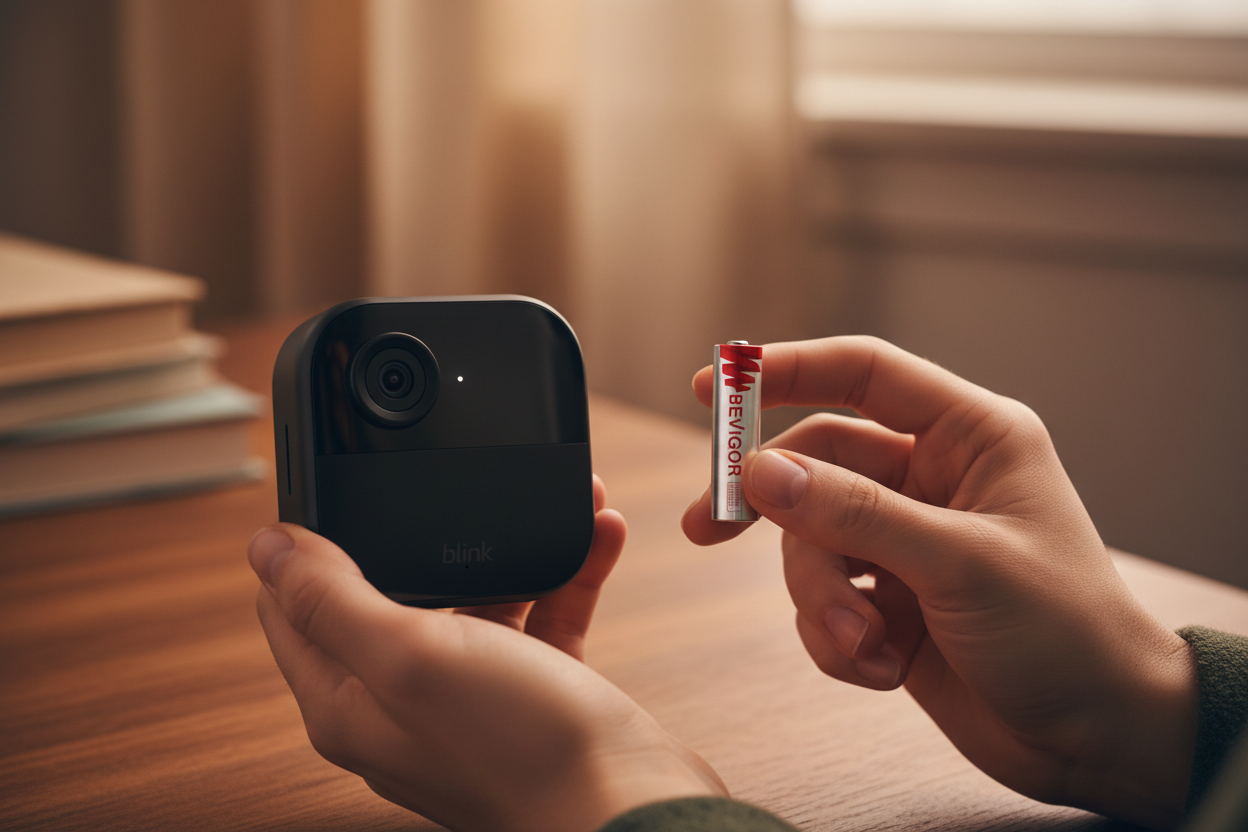
A Blink camera battery replacement is usually straightforward: identify the exact model, use the correct number of fresh AA 1.5V lithium non-rechargeable batteries, match the polarity marks, close the battery cover securely, and test the camera in the Blink app.
The model check matters. Many battery-powered Blink cameras use two AA cells, but the newer Battery Doorbell 2K+ uses three. A Blink Outdoor 4 Battery Extension Pack holds four. Blink Mini cameras use USB power instead of replaceable AA batteries, and the Wired Floodlight Camera is hardwired. Do not buy batteries based on the Blink name alone.
Quick answer: Blink specifies 1.5V lithium metal, non-rechargeable AA batteries for its battery-powered cameras. Blink recommends Energizer lithium batteries for optimal performance and notes that results may vary with other brands. Always confirm your exact model in Blink's current instructions before purchasing or installing replacements.
First, identify how your Blink device is powered
Battery requirements are not identical across the entire Blink range. Check the product name in the Blink app, on the device label, or in the original packaging before opening the camera.
| Blink device | Power method or battery requirement | What to know before replacement |
|---|---|---|
| Outdoor 4 | Two AA 1.5V lithium non-rechargeable batteries | A weather-resistant adapter or Battery Extension Pack may also be installed. |
| Outdoor and Indoor (3rd Gen) | Two AA 1.5V lithium non-rechargeable batteries | Remove the camera from mounts and accessories before opening the back cover. |
| Video Doorbell (1st Gen) | Two AA 1.5V lithium non-rechargeable batteries | Existing doorbell wiring does not replace the batteries as the device's main power source. |
| Battery Doorbell 2K+ | Three AA 1.5V lithium non-rechargeable batteries | Do not assume the two-battery count used by the earlier doorbell. |
| Outdoor 4 Battery Extension Pack | Four AA 1.5V lithium non-rechargeable batteries | Replace the pack's complete battery set and follow its separate opening instructions. |
| Mini and Mini 2 | USB power | These are not AA-battery replacement models. |
| Wired Floodlight Camera | Hardwired power | This device does not use replaceable AA camera batteries. |
Blink changes and expands its hardware lineup, so treat this as an orientation table rather than a substitute for the manual. The safest reference is Blink's current battery guide and the support page for your exact model.
What batteries do Blink cameras use?
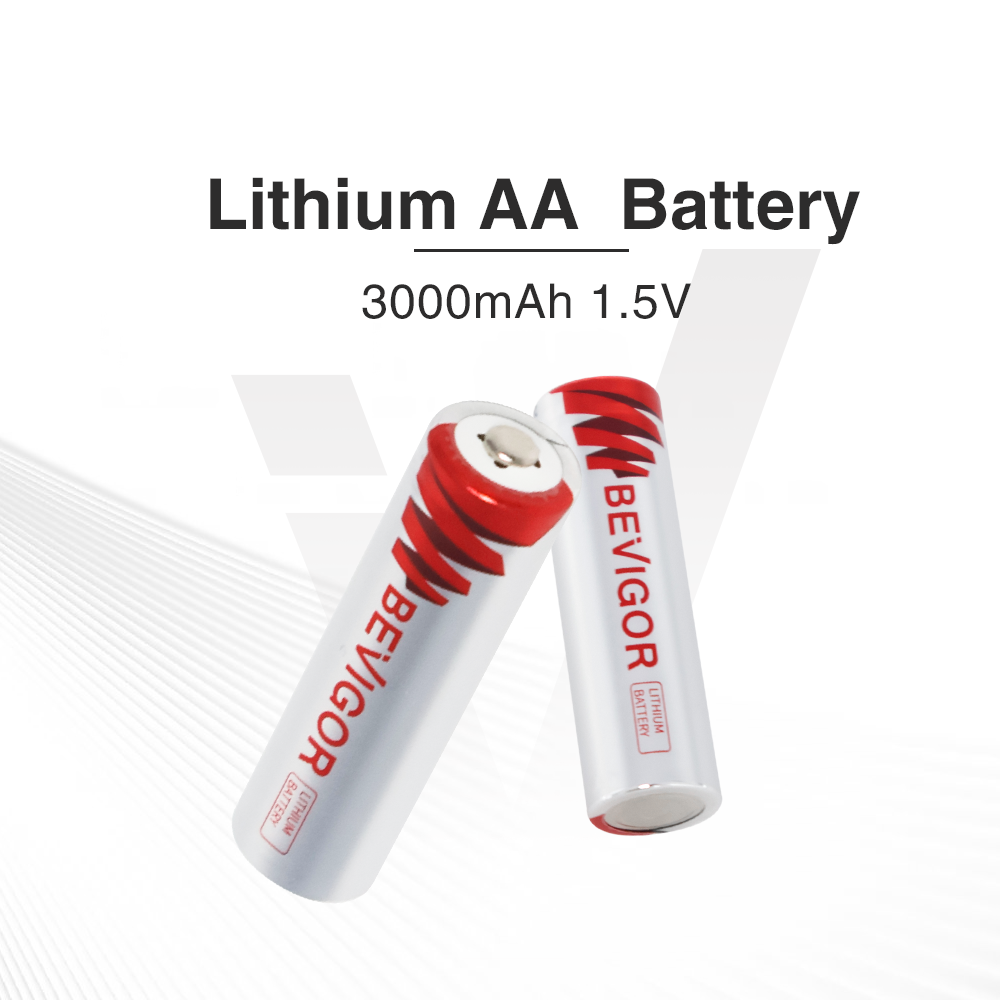
For models designed around replaceable AA batteries, Blink calls for size AA, 1.5-volt lithium metal, non-rechargeable batteries. That description is more useful than the word “lithium” by itself. Rechargeable lithium-ion cells are a different chemistry and voltage system, and Blink's support instructions say not to use lithium-ion, alkaline, or rechargeable batteries in applicable Blink cameras.
When shopping for replacement batteries for Blink cameras, check all four points on the label:
- Size: AA
- Nominal voltage: 1.5V
- Chemistry: lithium metal
- Rechargeability: non-rechargeable
Blink recommends Energizer lithium 1.5V non-rechargeable batteries for optimal performance and cautions that performance can vary with other battery types. That is Blink's manufacturer recommendation—not a claim that every other correctly specified battery will perform identically.
If you are shopping by battery type, the non-rechargeable AA collection keeps primary cells separate from rechargeable options.
Before changing the batteries
- Confirm the exact camera or doorbell model and required battery count.
- Obtain a complete fresh set of identical AA 1.5V lithium non-rechargeable batteries. Avoid mixing old and new cells or different battery types.
- Remove attached mounts, stands, USB cables, solar accessories, or floodlight accessories as directed for your setup.
- Use the included opening tool, a coin, or a suitable flat-head screwdriver when the model's instructions call for one.
Do not use a power tool to tighten a camera or battery-pack screw. Blink also warns against using a sharp or metal object to pry open the Outdoor 4 Battery Extension Pack. A damaged cover, screw, or seal can undermine weather protection.
How to change batteries in a Blink camera
The following workflow applies to common battery-powered models, but the release mechanism and battery count can differ. Use the model-specific Blink support instructions whenever they conflict with a general step.
1. Note the camera's current status
Open the Blink app and confirm which device is reporting low battery or offline. Note whether the Sync Module is online. This creates a useful baseline: if the camera remains offline after replacement, you will know whether the wider system already had a connection problem.
2. Remove the camera from its mount and accessories
Support the camera with one hand as you detach it. Disconnect external power only as directed. For an outdoor installation, move to a dry location before exposing the battery compartment. Removing batteries while the compartment is wet or while rain can enter creates an unnecessary risk.
3. Open the battery compartment
For Blink Outdoor 4, turn the rear screw counterclockwise until it moves freely, then gently pry the cover away at the designated edge. Do not force the cover.
For Outdoor and Indoor (3rd Gen) cameras, loosen the back-cover screw counterclockwise with the included tool, a coin, or a flat-head screwdriver. Once the screw is loose, gently lift the cover.
Doorbells and other generations use different release points. Follow the current model-specific diagram rather than copying the Outdoor-camera method. Blink's back-cover instructions collect the opening steps for supported devices.
4. Remove the old batteries
Notice the positive (+) and negative (–) orientation before lifting out the complete set. If you see leakage, corrosion, a swollen cell, a damaged contact, or moisture, stop and follow the battery manufacturer's handling guidance or contact Blink Support. For used batteries, follow the battery manufacturer's instructions and your local household hazardous-waste or recycling requirements; accepted disposal methods vary by location.
5. Insert the fresh batteries with the correct polarity
Match each battery's positive and negative ends to the symbols molded inside the compartment. Install the exact number required by your model. A reversed cell can keep the device from starting even when every battery is new.
Use a complete matching set rather than replacing only one cell. This makes the pack's age and condition more consistent and avoids pairing a depleted battery with a fresh one.
6. Refit and secure the cover
Check that no dirt, wire, or accessory edge crosses the sealing surface. On Outdoor 4, align the rear-cover post with the keyhole near the USB port, seat the cover evenly, and turn the screw clockwise until the cover is flush. On Outdoor and Indoor (3rd Gen), align the cover notches and hand-tighten the screw until snug.
Do not over-tighten. The goal is an evenly seated cover, not maximum screw force. If you removed a USB-port cover or weather-resistant power connection, restore it exactly as the applicable instructions require. Blink notes that opening certain external power ports can affect weather resistance until the proper weather-resistant setup is restored.
7. Reinstall the camera and run three checks
Return the camera to its mount, then:
- Open Live View and confirm that video loads.
- Arm the system if appropriate, walk through the detection area, and confirm that the expected motion event is captured.
- Review the device status in the Blink app and confirm that the camera is online.
Battery replacement normally does not require deleting and re-adding a camera. Avoid resetting or deleting the device as a first response; begin with power and connectivity checks.
What if the Blink camera stays offline after battery replacement?
An offline message after installing new batteries does not automatically mean the batteries are wrong. The camera, Sync Module, Wi-Fi connection, or battery contact may be involved.
Work through these checks in order:
- Recheck battery specification and polarity. Confirm that every cell is AA, 1.5V, lithium, non-rechargeable and points in the direction shown inside the compartment.
- Reseat the batteries and cover. Make sure the cells contact the terminals and the cover closes without obstruction.
- Check the Sync Module. If it is offline too, restore it before troubleshooting the individual camera.
- Power-cycle the camera. Blink instructs battery-powered camera users to remove the batteries for five seconds, reinsert them, wait about 30 seconds, and try the camera again.
- Check Wi-Fi and recent network changes. Confirm that other devices have internet access. If the Wi-Fi password changed, update the Blink system's Wi-Fi settings.
- Check signal strength. Temporarily moving the camera closer to its Sync Module can help separate a range or interference problem from a power problem.
- Contact Blink Support if it remains offline. Persistent problems may require model-specific diagnosis.
Blink's current camera-offline troubleshooting page provides the official sequence. For Outdoor 4 setup and connectivity context, you can also use our Blink Outdoor 4 setup, Wi-Fi, and fixes guide.
Why are fresh Blink camera batteries draining quickly?
Battery life can vary significantly with camera activity and installation conditions. Blink identifies frequent motion recordings, longer clips, repeated Live View use, high motion sensitivity, illuminator use, and weak camera-to-Wi-Fi signal as causes of higher battery use. Blink also notes that device settings, usage, and environmental conditions affect battery performance.
If fresh batteries drain unusually quickly, review Blink's high camera usage guidance, then check recent motion activity, clip length, Live View use, sensitivity, illuminator use, and signal strength before assuming the replacement cells are defective. Actual runtime varies by model, settings, environment, network conditions, battery age, and usage.
Choosing a replacement set
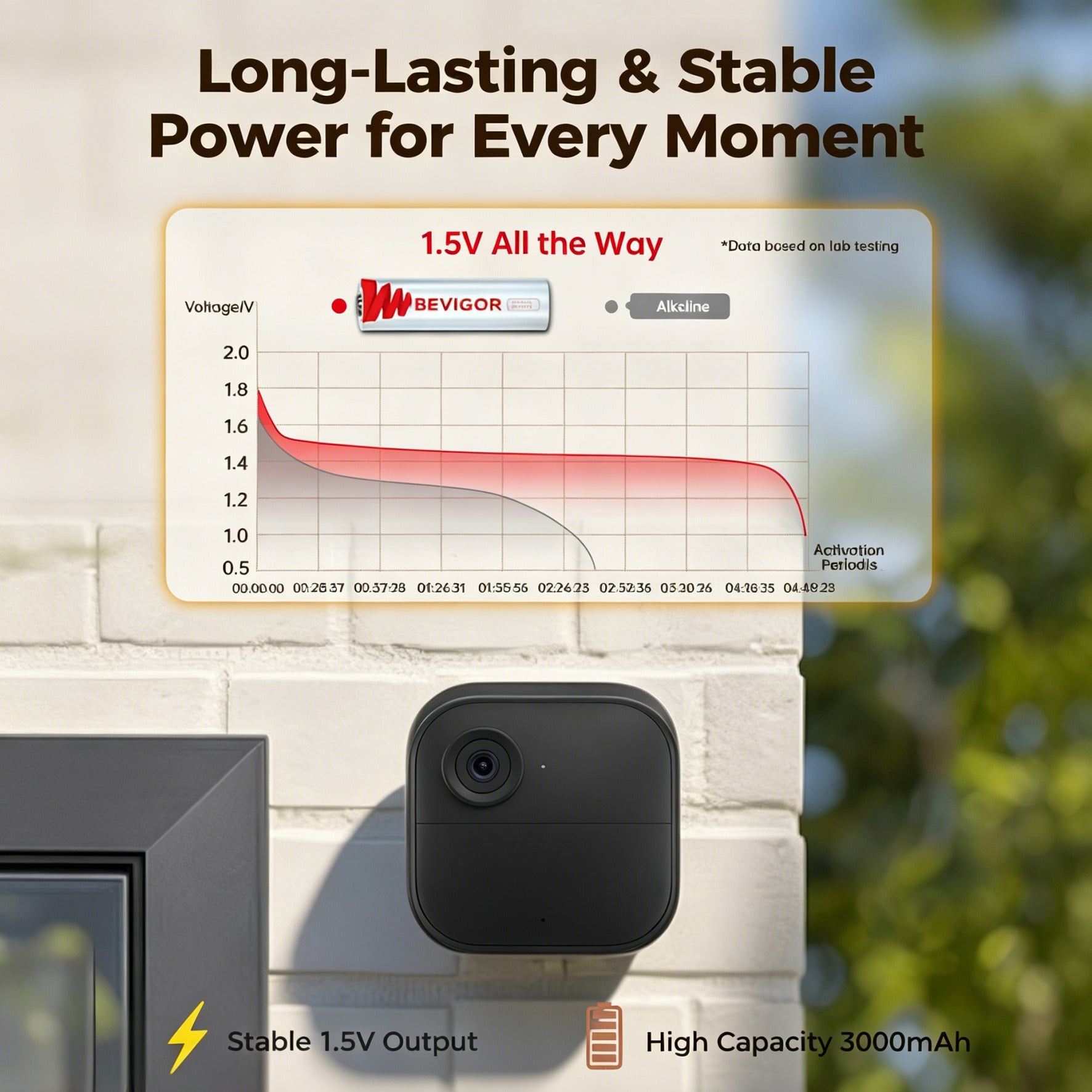
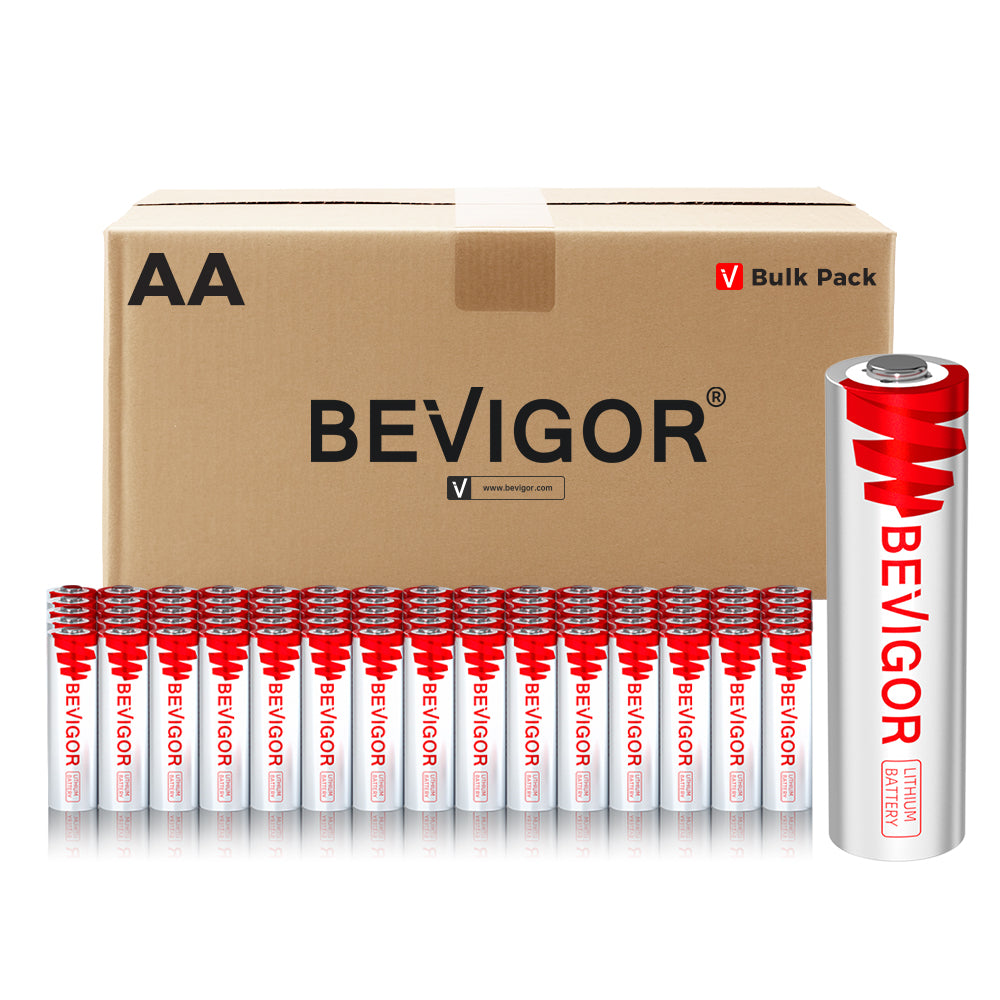
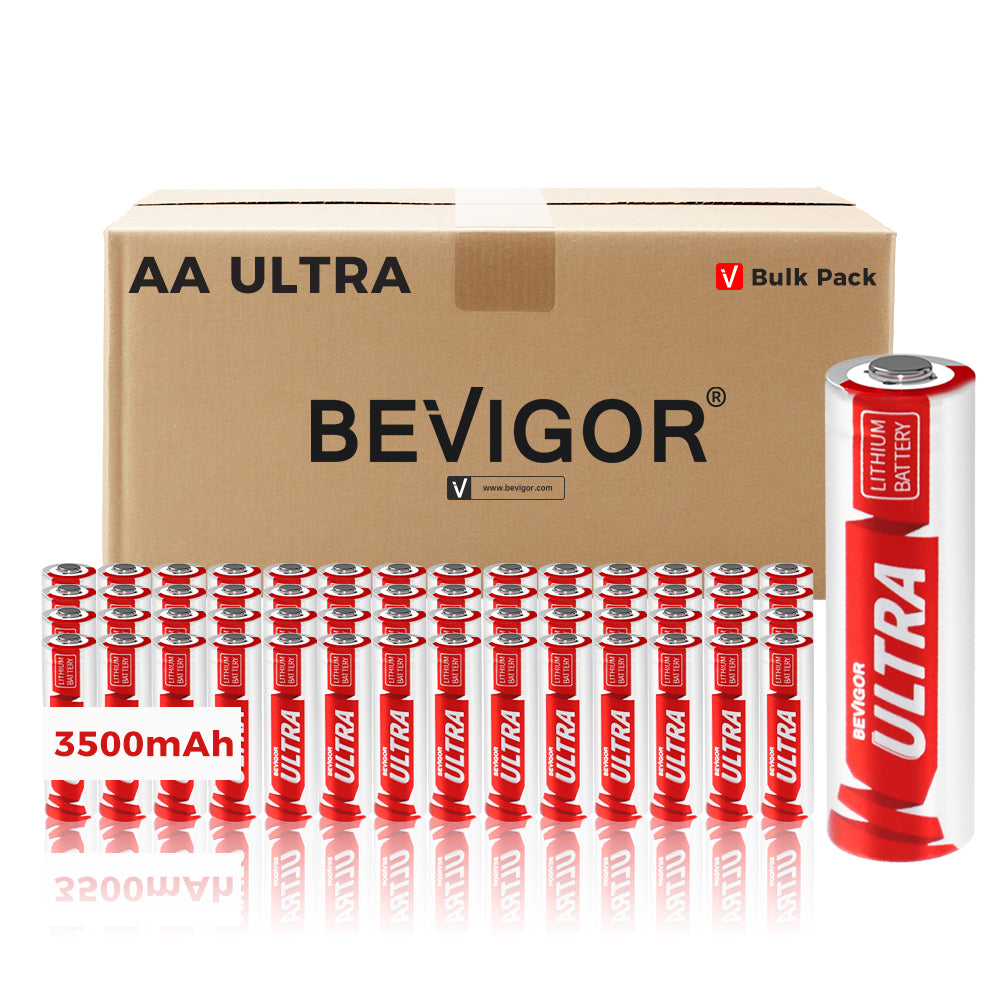
BEVIGOR offers 1.5V non-rechargeable lithium AA batteries in several pack sizes. Before ordering, compare the product label with Blink's current requirements for your exact model. Blink recommends Energizer lithium batteries for optimal performance and notes that results may vary with other brands. BEVIGOR batteries are not Blink-branded or Blink-approved, and BEVIGOR is not affiliated with or endorsed by Blink or Amazon. Actual runtime varies with the device, settings, activity, signal strength, temperature, battery age, and other installation conditions.
Frequently asked questions
Can I use alkaline batteries in a Blink camera?
Blink's current guidance for its AA-powered cameras specifies 1.5V lithium non-rechargeable batteries and says not to use alkaline batteries in applicable models. Follow the instruction for your exact camera rather than treating AA size alone as sufficient.
Can I use rechargeable AA batteries?
Not where Blink specifies non-rechargeable lithium AA cells. Rechargeable AA products can use different chemistries and voltage profiles. A battery fitting physically does not establish electrical compatibility.
How many replacement batteries does a Blink camera need?
It depends on the device. Outdoor 4 and Outdoor/Indoor (3rd Gen) use two; the first-generation Video Doorbell uses two; Battery Doorbell 2K+ uses three; and the Outdoor 4 Battery Extension Pack uses four. Mini models do not use replaceable AA batteries. Confirm the exact model before buying.
Do I need to reconnect Wi-Fi after changing Blink camera batteries?
Usually, no. A routine battery change does not by itself change the saved network settings. If the camera remains offline, first reseat the batteries, power-cycle the camera, verify that the Sync Module and Wi-Fi are online, and check whether the Wi-Fi name or password changed.
Why is my Blink camera still showing a low-battery or offline warning?
Check the battery type, polarity, contacts, and cover seating first. Then power-cycle the camera by removing the batteries for five seconds, reinstalling them, waiting about 30 seconds, and testing again. If the camera is still offline, check the Sync Module, Wi-Fi, and signal strength before contacting Blink Support.
Final replacement checklist
- Confirm the exact Blink model and battery count.
- Use the battery specification in the current model instructions.
- Replace the complete set and match every polarity mark.
- Reseat the cover evenly without over-tightening it.
- Verify Live View, motion capture, and online status.






Share:
Trail Camera Battery Checklist for Deer Hunting Season